
- Not a New Idea: The History of Vertical Tabs in Browsers
- How to Enable Vertical Tabs in Chrome Using Chrome Flags
- Step-by-step activation instructions
- Benefits and features of the Chrome sidebar
- Chrome’s Vertical Tabs vs. Competitors: Which Is Better?
- Microsoft Edge vertical tabs
- Firefox and AI
- The Future of Browser UX: What’s Next for Chrome?
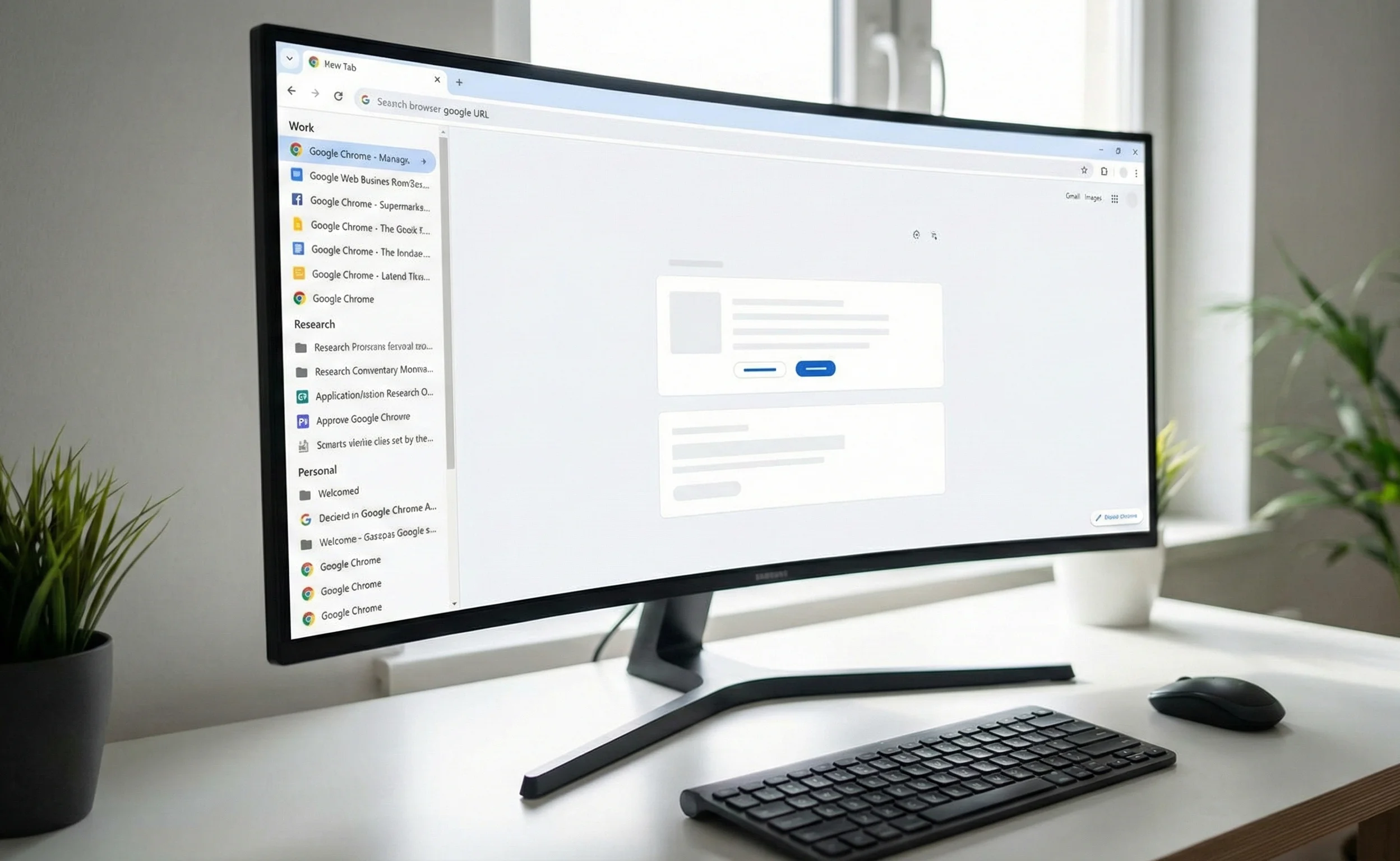
The world of web browsing is constantly evolving, striving to provide users with maximum multitasking efficiency. One of the most anticipated innovations is the introduction of vertical tabs in Chrome, which is currently in active testing. This feature, long available among competitors, promises to radically change your browser experience, especially if you’re someone who constantly keeps dozens of pages open.
The move from the traditional horizontal tab layout to Chrome’s sidebar isn’t just a design change; it’s a strategic decision designed to optimize space on modern widescreen monitors. When a horizontal tab bar becomes overcrowded, icons and page names become unreadable. Vertical tabs solve this problem by offering a clear, scrollable list.
Not a New Idea: The History of Vertical Tabs in Browsers
While this feature is new to Google Chrome, the idea of organizing tabs vertically is far from new. It has deep roots in the world of alternative browsers and extensions. Early versions of Opera even featured a sidebar that performed similar functions. Later, the Firefox community actively developed extensions like Tree Style Tab, which allowed for the creation of hierarchical tab structures.
Competitors, particularly Microsoft Edge, successfully implemented this feature several years ago, touting it as one of their key advantages. The success of Microsoft Edge’s vertical tabs forced market leader Chrome to recognize the need for such a tool. For modern users working with dozens of information sources simultaneously, this is no longer just a convenience, but a necessity for maintaining high-performance multitasking.
How to Enable Vertical Tabs in Chrome Using Chrome Flags
Chrome’s vertical tabs aren’t available to all users by default, as the feature is undergoing final testing. To be the first to test it and experience the browser’s new UX, you’ll need to manually enable it through experimental settings known as Chrome Flags.
Step-by-step activation instructions
Benefits and features of the Chrome sidebar
When you enable vertical tabs in Chrome, you’ll immediately experience several key benefits that significantly improve tab organization and your workflow:
- Maximum readability: Even if you have 50+ tabs open, their titles will remain fully visible, making it faster to find the page you need.
- Better Use of Space: On widescreen displays with more vertical space, the feature utilizes the dead space on the sides, keeping the main content screen clear.
- Grouping and hierarchy: Chrome’s sidebar functionality allows you to not only see all your tabs but also manage groups of tabs. You can quickly collapse and expand entire tabs.
- Integration with other tools: Chrome’s new Side Panel feature can also combine other useful tools, such as history, bookmarks, or Reading List, into a single control center.
Chrome’s Vertical Tabs vs. Competitors: Which Is Better?
Chrome’s late arrival to the vertical tab market has allowed other browsers to gain significant experience. The most prominent competitor in this space is Microsoft Edge.
Microsoft Edge vertical tabs
Microsoft Edge offers a high-quality implementation of vertical tabs. One of its strengths is the smooth and fast transition between horizontal and vertical modes, as well as built-in support for Collections, a tool for collecting and organizing tabs by project. This makes Microsoft Edge vertical tabs very attractive for professionals looking for a ready-made solution for improving multitasking efficiency.
Firefox and AI
While Firefox doesn’t have a built-in vertical tab feature, its community has done much to address this need through extensions. With advances in AI, it’s expected that future browsers will integrate vertical tabs with AI assistants that will automatically sort and group pages based on their content.
The Future of Browser UX: What’s Next for Chrome?
Chrome’s introduction of vertical tabs demonstrates Google’s willingness to experiment with core interface elements. This new Chrome feature is a key step in creating a more flexible and personalized browser.
Once released in Chrome Flags, vertical tabs are expected to gain deeper integration with other Google services, such as Workspace. This will transform the Chrome sidebar into more than just a place for tabs, but a fully-fledged digital workspace management hub. Whether you use Chrome Flags to enable it or wait for the official release, this feature is guaranteed to change the way you browse the web.
Even a small change, such as moving tabs from the top to the side, can save time and improve productivity for millions of users, making working with large amounts of information much more manageable and enjoyable.




0 Comments