
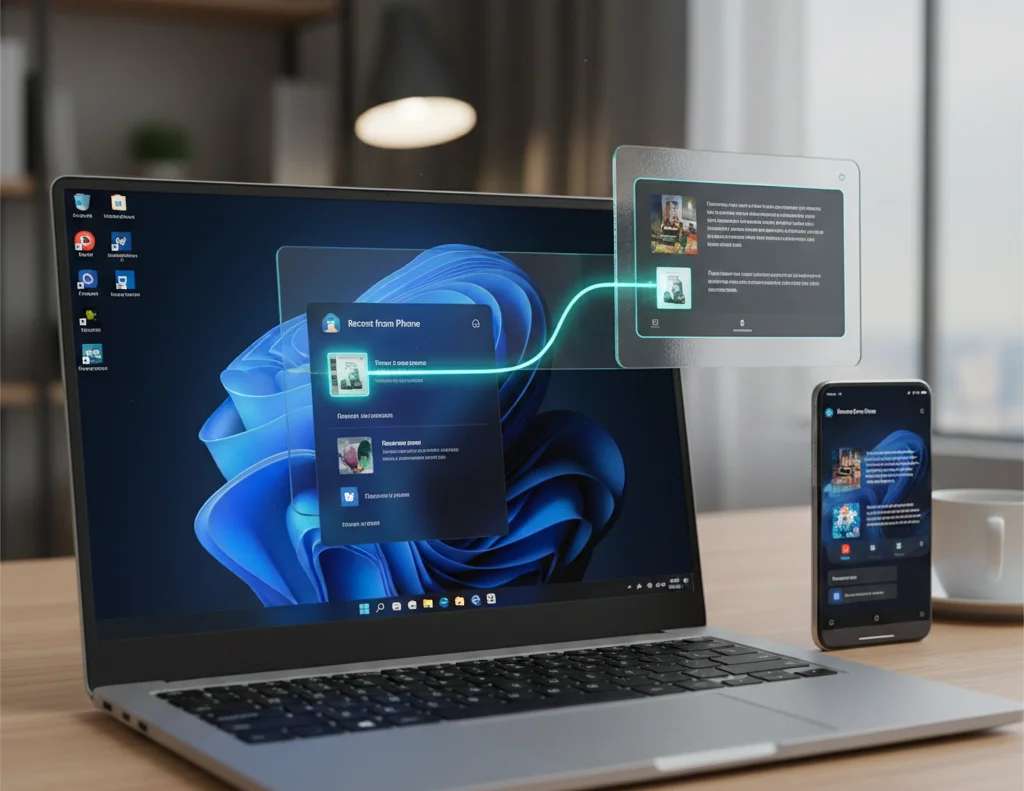
Learn how the new Continuity feature in Windows 11 lets you instantly continue working in Android apps on your PC.
Windows 11 integrates Android apps: a detailed analysis of the Continuity feature
Microsoft continues to blur the lines between desktop and mobile operating systems. The new Windows 11 update brings a feature that users have been waiting for years – the ability to seamlessly transition from using an application on a smartphone to working with it on a large monitor screen. This technology, called Continuity, brings the Windows ecosystem much closer to the experience that Apple offers with its iPhone and Mac.
Continuity: what kind of technology is this?
The basic idea behind Continuity is that your computer now “knows” what you were doing on your smartphone just moments ago. If you were reading an article in the browser, editing a note, or working on social media on your Android device, Windows 11 will prompt you to open the same app on your PC right where you left off.
This feature is implemented through the updated Cross-Device Experience Host component. It doesn’t just broadcast the screen, but creates an intelligent bridge between work sessions. This allows you to avoid unnecessary manipulations with finding the desired menu item or copying links via messengers to yourself.
Settings and system requirements
In order to take advantage of this innovation, the user must meet several technical conditions. First, both devices must be connected to the same Microsoft account. Second, they must be on the same Wi-Fi network and have Bluetooth activated to detect each other at a short distance.
- A smartphone with Android 9.0 or later.
- Link to Windows application version 1.24 or higher.
- A computer with Windows 11 (preferably the latest Beta or Dev channel builds).
- Updated Cross-Device Experience Host package from Microsoft Store.
The mechanics of the Start menu
The integration looks as natural as possible. The user does not need to launch special heavy programs. As soon as the smartphone and PC are synchronized, a special section “Recent” appears in the “Start” menu. It displays icons of the programs that you have just used on the phone.
By clicking on such an icon, Windows initiates a secure connection and opens the application’s broadcast window. It is important to note that the speed of operation depends on the bandwidth of your local network. For stable operation without delays, it is recommended to use the 5 GHz Wi-Fi frequency.
Productivity benefits
Why is this important? First, it saves time. Second, it allows you to use the advantages of both platforms. You can start typing a long text on the go on your smartphone, and finish it using a full-size keyboard on your PC. This is especially convenient for managers, copywriters, and developers who are constantly switching between gadgets.
Additionally, Cross-Device Experience allows for quick file sharing and text copying to a shared clipboard. This functionality is now part of a unified Continuity system, making interaction intuitive even for inexperienced users.
Device support status
Currently, the best compatibility is demonstrated by smartphones from the Samsung Galaxy and Google Pixel series. This is due to the fact that these manufacturers work closely with Microsoft at the firmware level. However, the developers promise that in the future the function will become available for a wider range of devices from other brands, provided that Google services are available.
Energy efficiency and safety
Since the feature requires a constant background connection, there is a question of battery life. Microsoft assures that the use of Bluetooth Low Energy protocols minimizes the impact on the smartphone’s battery. Regarding security, all data is transmitted in encrypted form within your home or office network, which prevents the interception of information by third parties.
The Future of Cross-Device Features
The introduction of Continuity is just the beginning. We expect to see even deeper integration in future Windows 11 updates. Perhaps there will be support for Android widgets directly on the Windows desktop or the ability to use your smartphone’s camera as a webcam for your PC without third-party software (this feature is already partially tested).
Microsoft is making it clear that your smartphone is not a separate device, but an extension of your computer. This approach makes Windows 11 the most flexible operating system for today’s multi-platform world.
Conclusion
The new Android app recovery feature on Windows 11 makes everyday tasks much easier. With simple integration through the Start menu and leveraging the power of Cross-Device Experience, users get a tool that really improves productivity. If you haven’t set up communication between your devices yet, now is the best time to do so.

0 Comments