
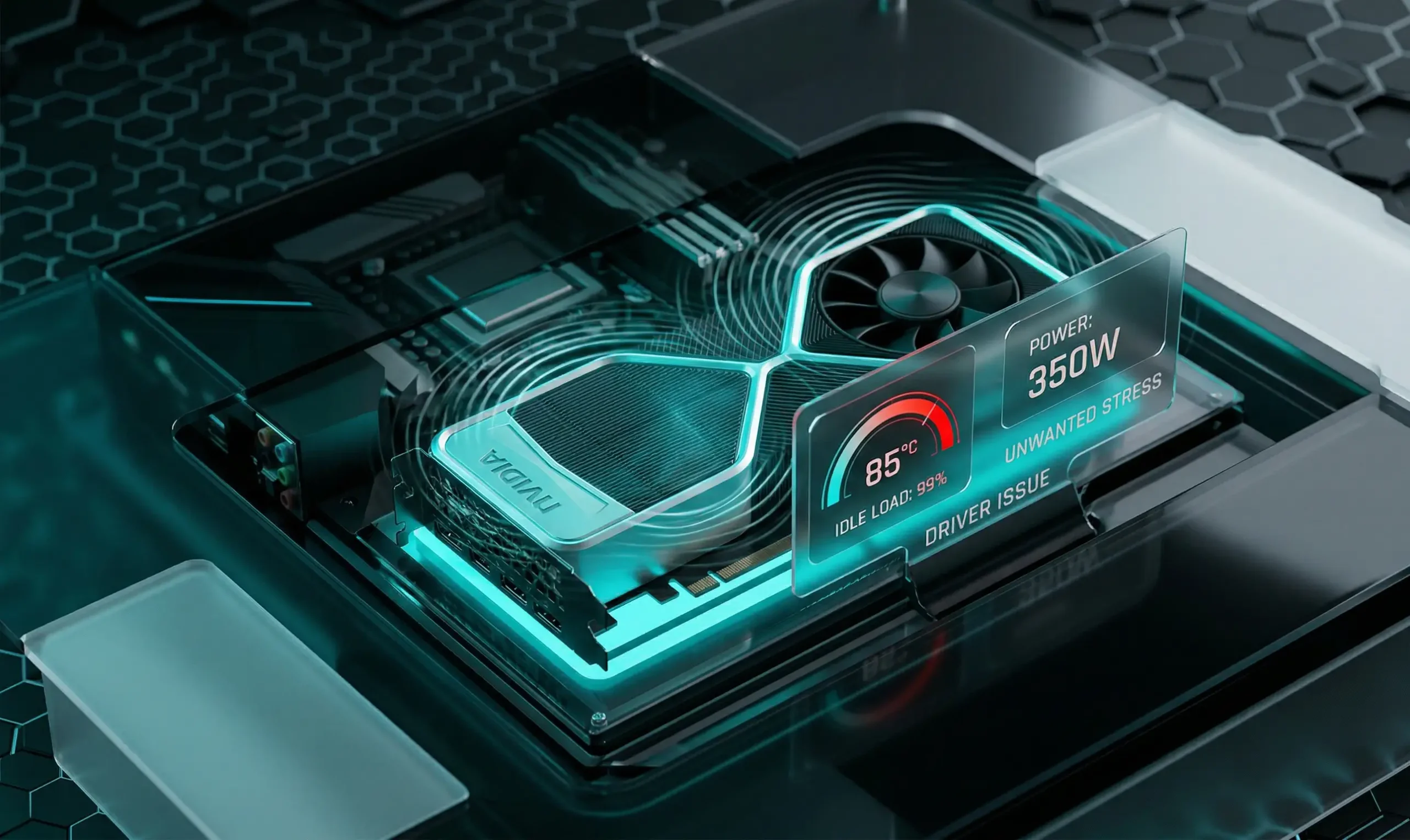
New NVIDIA driver causes abnormal voltage and frequency of graphics cards at idle. Learn how to fix the issue and protect your GPU.
NVIDIA driver issues: graphics cards are running at the limit when idle
The NVIDIA graphics card community has been in for a nasty surprise after another software update. The new driver, which was supposed to bring performance and stability improvements, has caused GPUs to behave erratically, with users reporting that their devices refuse to enter power-saving mode.
Why the new NVIDIA driver is a concern
The problem is that after installing the update, the GPU continues to run at high clock speeds even when the computer is not running games or heavy applications. Along with the frequency, the voltage supplied to the crystal also increases. This leads to the fact that the video card consumes significantly more energy than usual and generates excess heat in standby mode.
- A sharp increase in temperature at rest;
- Constant operation of the cooling system fans;
- Increased load on power supplies;
- Risk of accelerated degradation of components due to constant high voltage.
Technical details of the power failure
Typically, a modern graphics card will drop the frequency to a minimum of 210-300 MHz when idle, and the voltage to values below 0.7 V. However, with a problematic driver, the performance can remain at 1500 MHz and higher. This is especially common on systems using monitors with a refresh rate of 144 Hz or 240 Hz.
Experts say that this mode of operation is equivalent to a light gaming load. Although it won’t burn out the graphics card instantly, prolonged exposure to 1.0 V or 1.1 V without real need negatively affects the resource of the hardware, the cost of which can exceed $1,000 for flagship models.
How to check your computer for bugs
If you’ve recently updated your NVIDIA driver, it’s worth running a quick diagnostic. You can do this using free utilities like GPU-Z or MSI Afterburner. Pay attention to the following idle settings:
- GPU Clock (Core Frequency): should be minimum;
- VDDC (Voltage): must not exceed the basic resting values;
- Power Consumption: Should only be a few watts.
Workarounds until the patch is released
While NVIDIA engineers are working on an official fix, users have found several ways to stabilize their systems. The most radical but effective method is to completely remove the current version using DDU and install a previous stable build.
You can also try changing the settings in the NVIDIA Control Panel. Go to the “3D Settings” section and make sure the power management mode is set to “Normal” instead of “Maximum Performance”. This sometimes allows the AI algorithms and driver to reset frequencies correctly.
Future updates and conclusions
NVIDIA has already acknowledged some bugs in the Windows Task Scheduler and some background processes that use hardware acceleration. It is expected that the next Hotfix or full Driver release will fix the voltage issue. It is recommended to temporarily hold off on updating if your current system is running stable.



0 Comments