
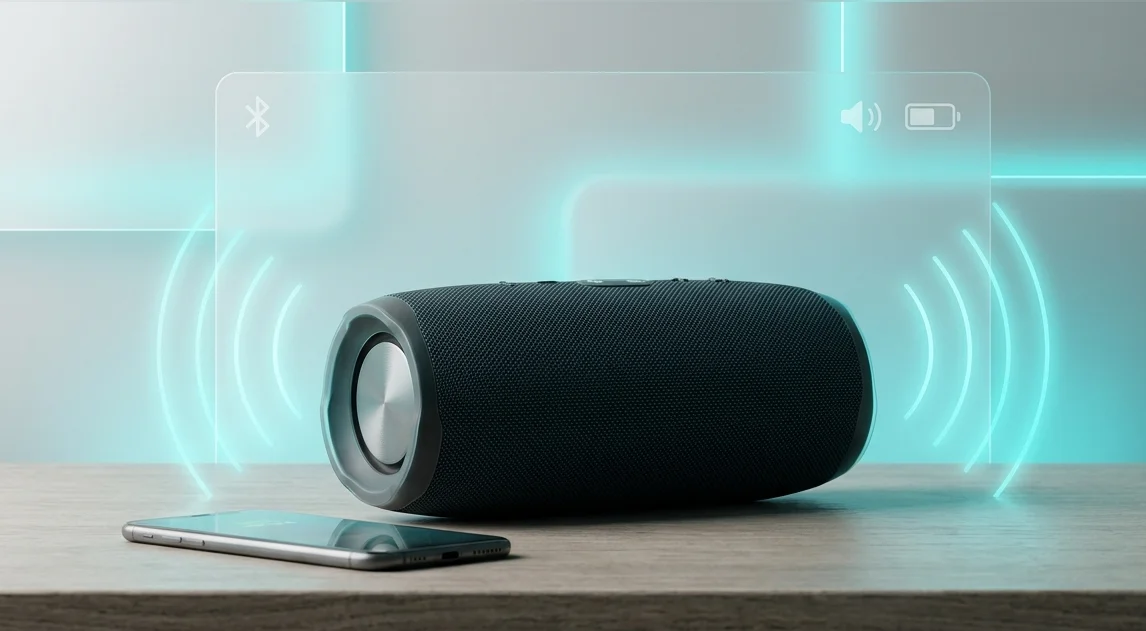
- Why Wireless Speakers Fail and How to Fix Them
- Understanding Wireless Signal Interference
- How to Properly Reset and Pair Your Speaker
- Factory Reset Procedures by Brand
- Resolving Low Volume and Audio Lag Issues
- Fixing Volume Issues on Android
- Fixing Audio Issues on Windows and macOS
- Battery Health and Power System Maintenance
- Identifying Battery Failure Symptoms
Why Wireless Speakers Fail and How to Fix Them
Portable Bluetooth speakers have become essential gadgets for listening to music anywhere. However, even premium models from top manufacturers can experience connection issues, sudden dropouts, or battery problems. Most of these glitches are software-related and can be resolved without replacing the hardware or visiting a repair center.
Understanding Wireless Signal Interference
Bluetooth operates on the 2.4 GHz frequency band, which is heavily crowded by Wi-Fi routers, household electronics, and smart home hubs. Physical obstacles like concrete walls or metallic objects can also degrade the signal, leading to stutters or complete disconnects. Clearing temporary cache files on your playback device often restores a stable connection.
How to Properly Reset and Pair Your Speaker
If your phone or laptop fails to detect your speaker, force the speaker into pairing mode. Most models require holding the power or dedicated Bluetooth button for 3 to 5 seconds until a light flashes or a sound plays.
Factory Reset Procedures by Brand
Performing a hard reset clears all cached devices from the speaker memory. Here are standard factory reset button combinations:
- JBL: Press and hold Play and Volume Up simultaneously for 3 to 5 seconds.
- Sony: Hold Power and Volume Down together or press the recessed Reset button using a pin.
- Marshall: Hold the Bluetooth button or the Play/Pause + Source combination for 7 seconds.
- Bose: Press and hold the Power button for 10 seconds until the device list resets.
Resolving Low Volume and Audio Lag Issues
If your speaker is paired correctly but the output volume is unexpectedly low, the issue usually lies within the OS volume synchronization protocols. Features like Absolute Volume on Android or Windows can restrict the actual gain sent to the hardware.
Fixing Volume Issues on Android
To unlink media volume control on Android devices:
- Go to Settings -> About Phone and tap Build Number 7 times to enable Developer Options.
- Open Developer Options from system settings.
- Locate Disable Absolute Volume and toggle it ON.
- Restart your device and reconnect to the speaker.
Fixing Audio Issues on Windows and macOS
In Windows Audio Settings, select the speaker as Headphone / Stereo Output rather than Hands-Free AG Audio, which severely compresses sound quality for voice calls. On macOS, verify the balance settings inside System Preferences -> Sound.
Battery Health and Power System Maintenance
If your speaker turns off immediately after unplugging or shuts down during high-volume playback, the lithium-ion battery or battery management system (BMS) may be failing. Battery capacity naturally degrades after 300 to 500 charge cycles.
Identifying Battery Failure Symptoms
- The speaker shuts down instantly when bass heavy tracks play at high volume.
- Battery indicator drops from 100% to critical within minutes.
- The device does not accept charge from 5W to 20W power adapters.
Always verify that your charging cable and wall adapter provide adequate voltage and current. Charging via weak USB ports (such as 0.5A computer ports) may prevent proper power delivery. Replacing an aged battery pack restores original battery life fully.




0 Comments